
Fortnite Monitor Setup for Clearer Build Fights
Find a Fortnite monitor that matches your frame rate, refresh target, resolution, and panel priorities for tracking builds and chaotic fights with confidence.
open --guide-monitors READY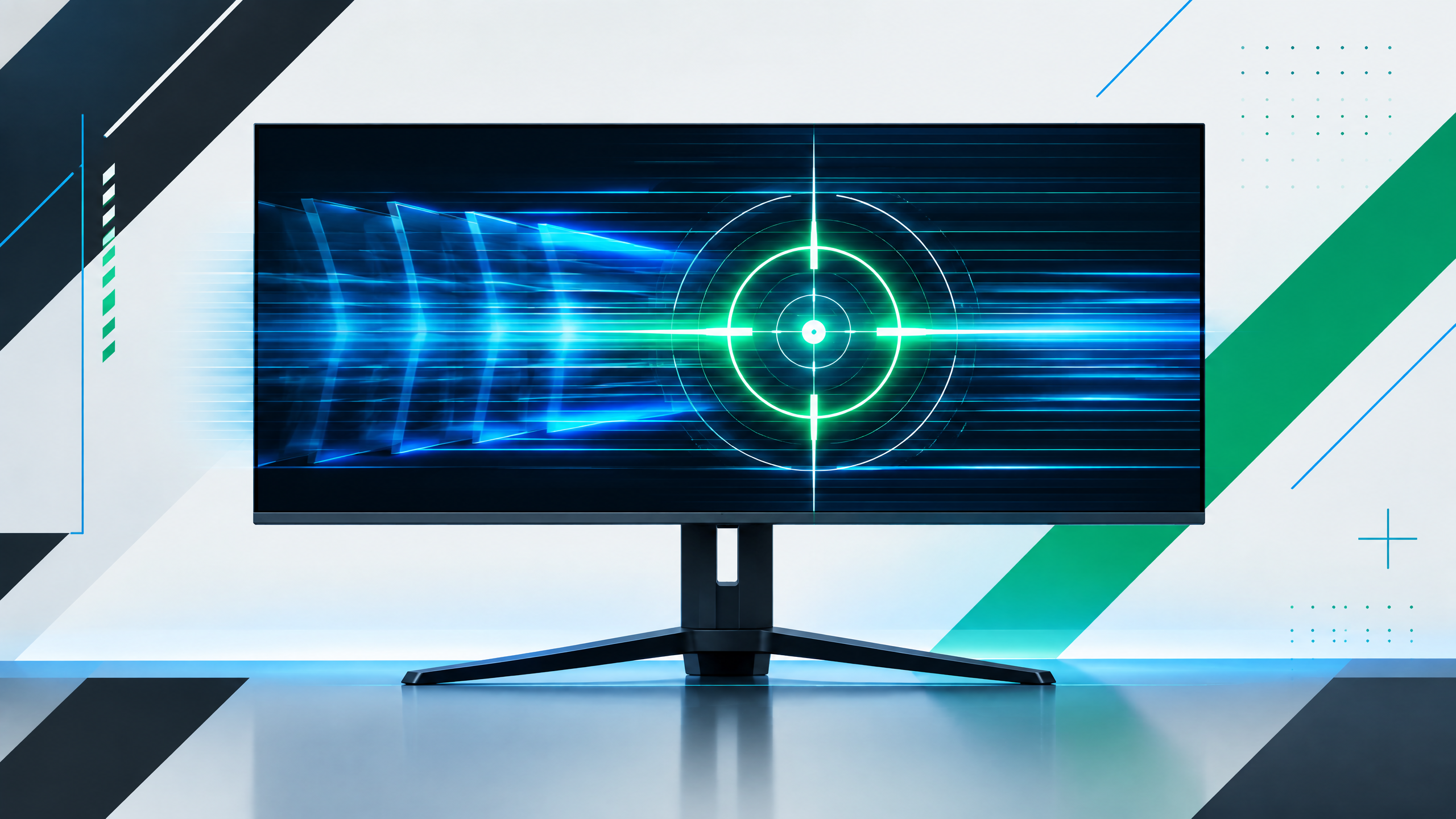
Fortnite’s visual pace changes constantly: a drop becomes a close-range duel, then a build battle filled with rapid camera movement. A suitable monitor should keep that motion legible without asking your PC to render more than it can sustain. This guide focuses on the choices that matter most—refresh rate, response behavior, resolution, and panel character—so you can compare affordable 1080p esports screens with more polished all-round displays.
The useful question is not simply which monitor has the largest number. Match refresh rate, frame delivery, response behavior, resolution, panel character and the limits of your PC to the way you play.
Set a refresh target for tracking and building
Set a refresh target for tracking and building: Prioritize a refresh rate that lets you reliably follow fast camera swings and rapid structure changes without chasing unreachable frame rates. Choose a target matched to your average GPU performance so motion stays smooth during peak fights — this reduces perceived input lag and keeps visual updates consistent. If your system struggles, opt for adaptive sync and slightly lower resolution rather than an unstable high refresh target that produces stutter during construction sprees.
Resolution choices for performance and detail
Resolution choices for performance and detail: Resolution affects how much your GPU must work and how easy it is to spot opponents in cluttered builds. For many competitive setups, 1080p preserves high frame output and sharper motion at speed, while higher resolutions add clarity for distant details but cut frame headroom. Balance the level of on-screen detail you need for spotting builds against whether your system can maintain steady frame timings in chaotic rotations.
TN, IPS, and the comfort-versus-speed decision
TN, IPS, and the comfort-versus-speed decision: Panel type determines color, viewing angles, and response quirks under fast motion. Faster panels reduce smearing and ghosting during quick builds, while IPS panels give more accurate colors and better viewing angles that help when multitasking or streaming. Pick a panel whose response behavior and visual comfort suit long play sessions; for many players the marginally slower but clearer IPS experience is preferable to the driest possible motion for brief competitive bursts.
Create a monitor shortlist around your actual PC
Create a monitor shortlist around your actual PC: Build a candidate list based on the refresh target your GPU can sustain at your chosen resolution, then check measured response and adaptive sync support rather than marketing claims. Include a model that balances perceived motion clarity with ergonomics like tilt and height, and ensure its latency favors your mouse sensitivity. If you stream or watch VODs, factor color and contrast; if you only play fast modes, lean toward consistency and low persistence.
Field check
Before you keep this choice, run the following short check in your own setup:
- Check the frame rate your PC can actually sustain.
- Compare motion clarity at your intended refresh rate.
- Treat resolution, panel type and comfort as part of the same decision.
Validate before you settle
Validate choices by testing a monitor with your own system under match-like settings: play a few competitive rounds, assess motion clarity during rapid builds and rotations, and confirm your GPU holds the chosen refresh target. If things wobble, lower resolution or enable adaptive sync before chasing higher refresh rates. Prioritize consistent frame delivery and comfortable viewing geometry over headline specs when making a final selection.
Source and next route
This PlayerCFG field note is original editorial copy built from public settings and gear research. It does not reproduce the source article. For the underlying reference, visit Best Monitor for Fortnite .
DATA NOTEThe guide emphasizes 144Hz as a floor and 240/360Hz for many pros but does not develop a detailed resolution framework; update the adaptation with current Fortnite hardware context. The source image is remote ProSettings media and requires licensing/attribution review. PlayerCFG is not affiliated with the referenced publisher, game studio or hardware brand.
OPEN FORTNITE INDEX