
THE FINALS Responsive Arena Profile
Build THE FINALS for responsive firefights with balanced graphics, precise mouse feel, clean audio, and a visible crosshair amid destruction and chaos.
open --guide-game-settings READY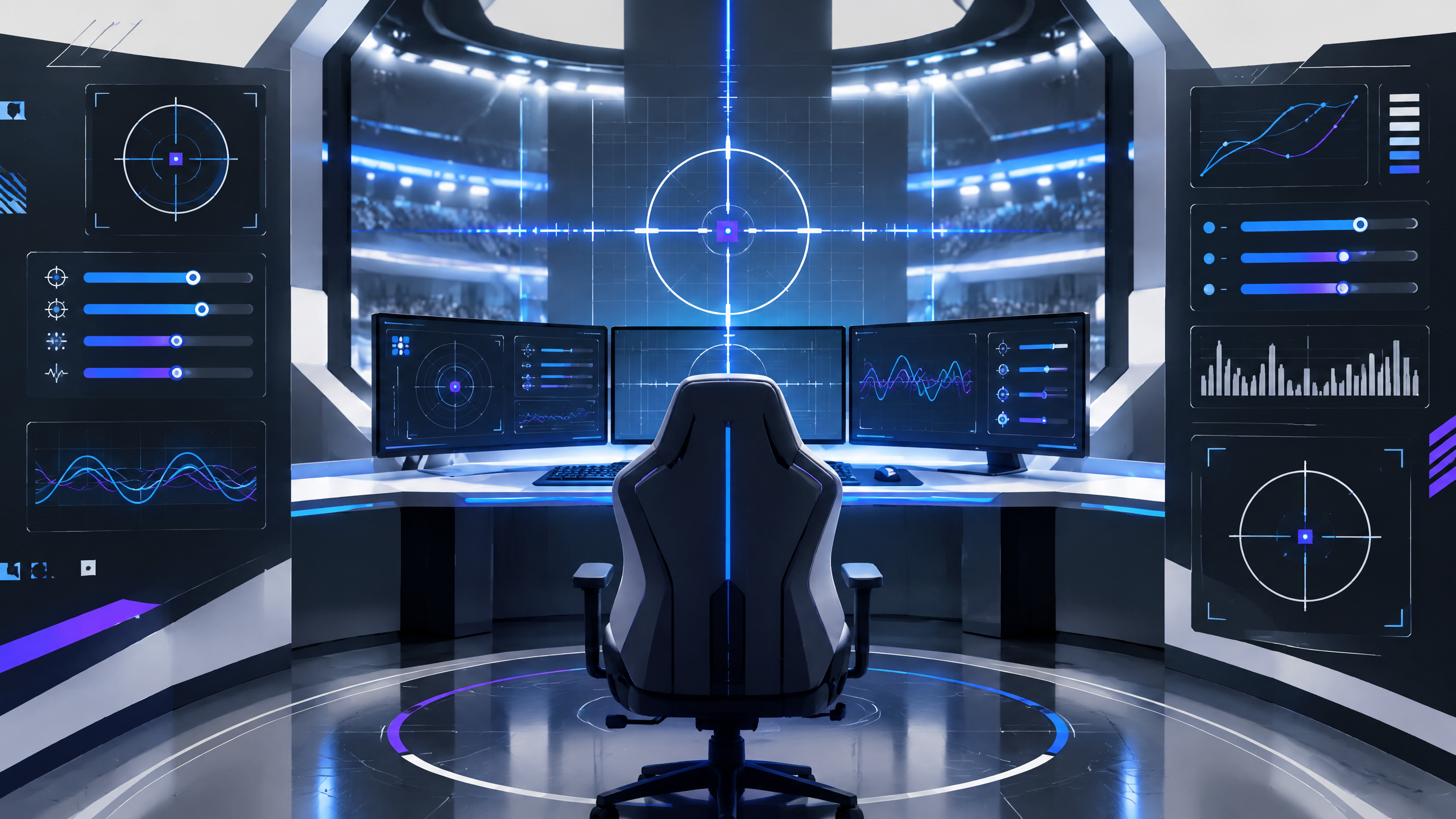
THE FINALS combines destructible arenas with rapid engagements, so a stable frame time and readable effects can matter as much as raw image quality. This PlayerCFG adaptation lays out a balanced path through video, mouse feel, audio, reticle, and accessibility decisions. Use it to remove avoidable distractions, then test whether your field of view and sensitivity support quick turns without sacrificing precision. Save your old profile before experimenting.
Treat the published values as a test range, not a universal preset. Start with the settings that protect frame time and visibility, then change one input at a time so you can tell which decision helped.
Graphics that keep destruction readable
Graphics that keep destruction readable: Favor settings that preserve clear silhouettes and readable particle size during destruction events. Reduce excessive post-processing and motion blur so debris doesn't mask targets; keep contrast and object detail at levels where enemies remain visible against variable lighting. Prioritize stable frame pacing over maximum fidelity on volatile scenes; consistent frame delivery makes it easier to track movement through falling geometry and temporary cover.
Mouse and field-of-view choices for quick turns
Mouse and field-of-view choices for quick turns: Pick a field of view that balances peripheral awareness with target legibility and pair it with mouse sensitivity that allows full turns without sacrificing fine tracking. Use a consistent DPI-to-sensitivity mapping so muscle memory covers snapping and sustained aim. Test turn speed across multiple weapon classes and tweak only if quick 180s feel sluggish or micro-adjustments become jittery.
Audio, reticle, and accessibility cleanup
Audio, reticle, and accessibility cleanup: Clean up audio layers to emphasize footsteps, impacts, and directional cues while reducing overlapping ambient clutter. Choose a reticle with steady contrast and minimal animation so it remains visible amid destruction. Enable accessibility options that reduce screen shake, highlight interactables, or increase subtitle clarity as needed to limit sensory overload during intense exchanges.
Field check
Before you keep this choice, run the following short check in your own setup:
- Record the current profile before changing anything.
- Test one setting group at a time in a repeatable scenario.
- Keep the change only if clarity or control improves without a new distraction.
Validate before you settle
Validate changes by playing short, focused sessions that stress destructible chaos and rapid engagements. Revert any single setting that degrades target readability or frame stability, and prefer incremental adjustments. Keep a saved profile snapshot to compare performance before and after tweaks, and repeat validation after updates or driver changes to ensure the balance between visual clarity and smooth play remains intact.
Source and next route
This PlayerCFG field note is original editorial copy built from public settings and gear research. It does not reproduce the source article. For the underlying reference, visit THE FINALS Best Settings and Options Guide .
DATA NOTEProSettings-hosted image; verify licensing and attribution before reuse; patch-sensitive game settings. PlayerCFG is not affiliated with the referenced publisher, game studio or hardware brand.
OPEN PLAYER INDEX